
Claude Video to MP4: From Animation Code to a Playable File
For a Remotion animation written with Claude, the Claude video to MP4 workflow is: open the project, preview its composition, render an H.264 file, then check the exported video. If you already have a video file, use a converter instead. Changing a filename cannot turn animation code into a movie.
This guide covers local Remotion export and optional FFmpeg conversion. Commands follow official documentation; the example prompt is a starting brief, not a tested Claude session or a finished customer video.

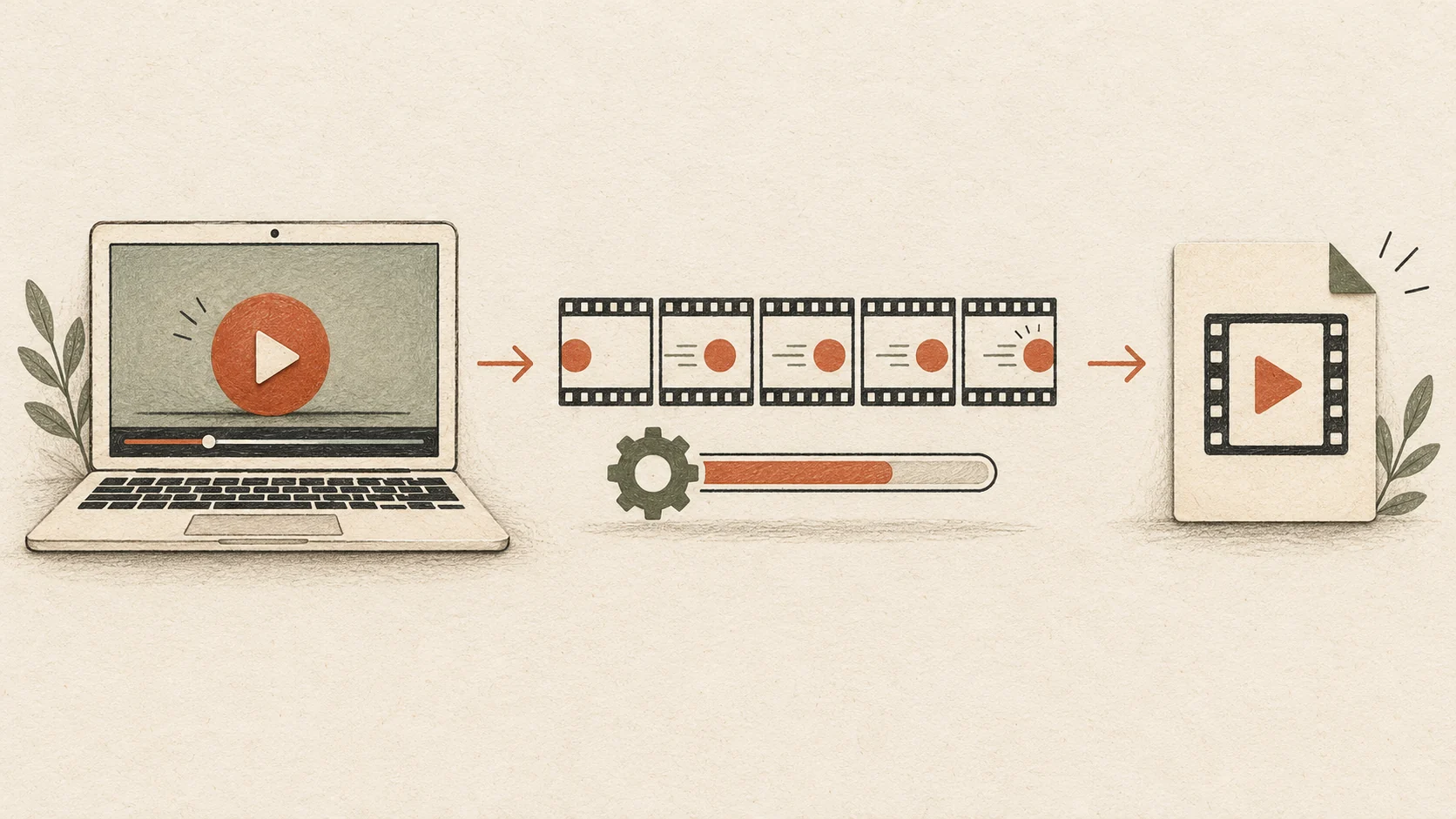
AI-generated illustration: a project, its preview, and an exported video are separate deliverables.
Start with the file you actually have
A Claude video to MP4 task can begin with different inputs. Identify yours before installing anything:
- A Remotion project: React or TypeScript files, a package manifest, and registered compositions. Follow the rendering steps below.
- An existing WebM or MOV: playable media that needs a different container or codec. Skip to the conversion section.
- An HTML animation or browser artifact: a webpage that still needs a suitable capture or rendering workflow. The Remotion command cannot export arbitrary HTML directly.
- A script or storyboard: planning material. Create the visuals and timeline before attempting an export.
For the broader division of work between Claude, production tools, and editors, read our Claude video capabilities and workflow guide.
Prepare a small Remotion project
For this Claude video to MP4 route, you need Node.js, a terminal, a coding agent, and a project folder. Remotion's coding-agent guide documents this blank-project setup:
npx create-video --yes --blank --no-tailwind my-video
cd my-video
npm install
npx remotion skills add
npm run dev
Run these commands in order. Open another terminal in the same folder to start Claude Code. If you already have a Remotion project, install its dependencies and use its existing preview script instead of replacing it.
Keep the scene short and self-contained. A five-second animation with simple shapes helps separate export problems from missing footage, remote fonts, or a complicated soundtrack. Save a copy before asking the agent to revise working files.
Give Claude an exportable composition brief
The useful Claude video to MP4 prompt specifies both the scene and its output contract. Here is an illustrative brief:
In this Remotion project, create a composition called ExportDemo. Use 1920 by 1080 pixels, 30 frames per second, and 150 frames. Animate a terracotta circle moving across a cream background, then hold the final position. Drive movement with useCurrentFrame. Use no external assets or audio. Register the composition, identify the entry file, and show the preview and H.264 export commands. Explain any changes to existing files.
Remotion registers renderable scenes through a Composition containing a component, dimensions, frame rate, and duration. Its fundamentals explain these properties. At 30 fps, 150 frames last five seconds; a thirty-second composition needs 900 frames.
Ask for frame-driven movement because the renderer evaluates frames individually. useCurrentFrame supplies the timeline position. Review generated code for browser timers or changing random values that could make the preview behave differently from a render.
Preview the timeline before rendering
In a Claude video to MP4 project, a successful preview is a checkpoint. Open Remotion Studio, select ExportDemo, and scrub through the beginning, middle, and ending. Check that the circle moves rather than appearing instantly at its destination.
Confirm the title or labels remain readable at the intended display size. Look for elements outside the frame and an ending that cuts off before viewers can read it. Request specific corrections, such as holding the final state for another second.
For your project, keep authorized assets in the public folder and reference them with staticFile. Verify filenames and capitalization. Avoid relying on a private browser session to load an image during export.
AI-generated diagram: previewing the scene comes before rendering frames and encoding the file.
Render an H.264 MP4
The Claude video to MP4 export happens in the renderer. From the project folder, use the actual entry path and the exact registered composition ID. For the example brief, the command is:
npx remotion render src/index.ts ExportDemo out/export-demo.mp4 --codec=h264 --pixel-format=yuv420p --overwrite=false
Replace src/index.ts if your project's entry file differs. ExportDemo must match the composition's ID, including capitalization. The render CLI documentation explains the entry, composition, output path, and flags. Disabling overwrite protects an earlier export from replacement.
H.264 identifies the video codec; MP4 identifies the container. The yuv420p pixel format is a practical compatibility choice, although the destination player still needs checking. Remotion's encoding guide describes supported combinations. Choose a separate output filename for each revision.
You can also export through Remotion Studio: select the composition, open Render, choose settings, and save the output. Wait for rendering to finish before opening the file.
Prefer help producing the finished video? Our proposed service is $49.99 per video. Bring your screenshots, message, and intended placement; we can discuss the production brief. This site's form is a static demo that creates a local summary only. It does not place an order or take payment.
Convert an existing video with FFmpeg
If your Claude video to MP4 request starts with playable media, conversion avoids rebuilding the animation. With FFmpeg installed, this example converts an existing WebM:
ffmpeg -n -i input.webm -c:v libx264 -pix_fmt yuv420p -c:a aac -movflags +faststart output.mp4
Use your real input path. The command encodes video with H.264 and audio with AAC when an audio stream exists. It requires a build that includes libx264. The -n option refuses to overwrite an existing file; faststart moves MP4 metadata toward the beginning for playback. See the FFmpeg manual.
FFmpeg cannot render React components, add missing narration, or sharpen blurry footage. Keep the original media because re-encoding can change quality. Check the output before removing any working files.
Check the exported file, not just the preview
Finish the Claude video to MP4 workflow by inspecting the actual output. With FFprobe installed, run:
ffprobe -v error -show_entries stream=codec_name,width,height,pix_fmt,r_frame_rate:format=duration -of json out/export-demo.mp4
FFprobe reports stream and container information. For the illustrative brief, check for H.264, 1920 by 1080 dimensions, 30 fps, and roughly five seconds. These are expected settings, not measurements from an attached render.
- Play from start to finish, including transitions and the final frame.
- Inspect small text on a phone and desktop.
- Listen when audio is expected; the circle example is intentionally silent.
- Upload a draft to the intended platform and check its processed version.

AI-generated illustration: review timing, readability, playback, and any intended audio before sharing.
Fix the symptom before retrying
A failed Claude video to MP4 export needs a specific diagnosis:
- Composition missing: confirm registration and the ID supplied to the command.
- Motion missing: check whether positions depend on the frame rather than elapsed browser time.
- Missing image: check its public-folder path, filename, and render access.
- Wrong duration: divide durationInFrames by fps and compare with your brief.
- Unreadable text: increase its size or simplify the layout before exporting again.
- File will not play: confirm rendering completed and inspect codec information, then try another player.
Share the exact error and relevant file with Claude. Ask for the smallest correction and review the changed code before retrying. Keep filenames distinct so you can compare the previous result with the repaired export.
Claude video to MP4 questions before exporting
Can I export without writing code myself?
A coding agent can help implement the scene, but this Claude video to MP4 route still requires installing dependencies, running the project, and checking its output. For an existing media file, a conversion tool may be sufficient.
Why does my animation preview have no download button?
A preview interface does not guarantee an encoded video exists. Identify the underlying project or export feature. For a Remotion composition, use Studio or its render command.
Should I choose portrait or landscape?
Set dimensions for the destination before designing the scene. Reframing a horizontal composition for a vertical placement may require new text sizes and positions, not merely a different export filename.
Turn the export into a production brief
Once your Claude video to MP4 attempt reveals what is missing, collect the source project, authorized assets, target dimensions, intended duration, and a reference style. Note the exact scene or technical issue you need help resolving.
Browse the guide directory for related planning advice. Keep the project editable so later wording, footage, or timing changes can be rendered again.
Need a product video beyond the export? Use your Claude video to MP4 work as the starting material for a $49.99 production brief. The current request form is a static demo: it creates a local summary, with no order submission, payment, or automatic production.