
Claude Opus 5.5 Video: From Brief to Finished MP4
A Claude Opus 5.5 video workflow combines planning or coding with tools that produce the finished file. Claude can help write a script, structure scenes, and generate animation code. Rendering, footage generation, audio production, and editing depend on the environment and tools you connect.
Anthropic lists the model's inputs as text and images, with text output in its official model specifications. A downloadable movie can still emerge from a tool workflow: the Files API documentation explicitly discusses videos produced through code execution. Choose a production path that fits your material and skills.

AI-generated editorial illustration. The images in this guide explain concepts; they are not product screenshots or completed customer videos.
What Claude contributes to video production
For a Claude Opus 5.5 video project, separate the creative plan from the production machinery. Ask Claude to identify one audience, one problem, and one product benefit before requesting scenes. Give it screenshots and approved feature descriptions so the narrative reflects your actual interface.
The output might be a storyboard, editing plan, or animation code. An editor can assemble screenshots and recordings; a renderer can turn animation code into frames; a dedicated video model can generate footage from prompts.
Identify these responsibilities when reviewing results. Ask which assets were supplied, which were generated, and which tool created the exported file. Make revision requests specific: change the headline, slow the cursor, replace a screenshot, or adjust the soundtrack.
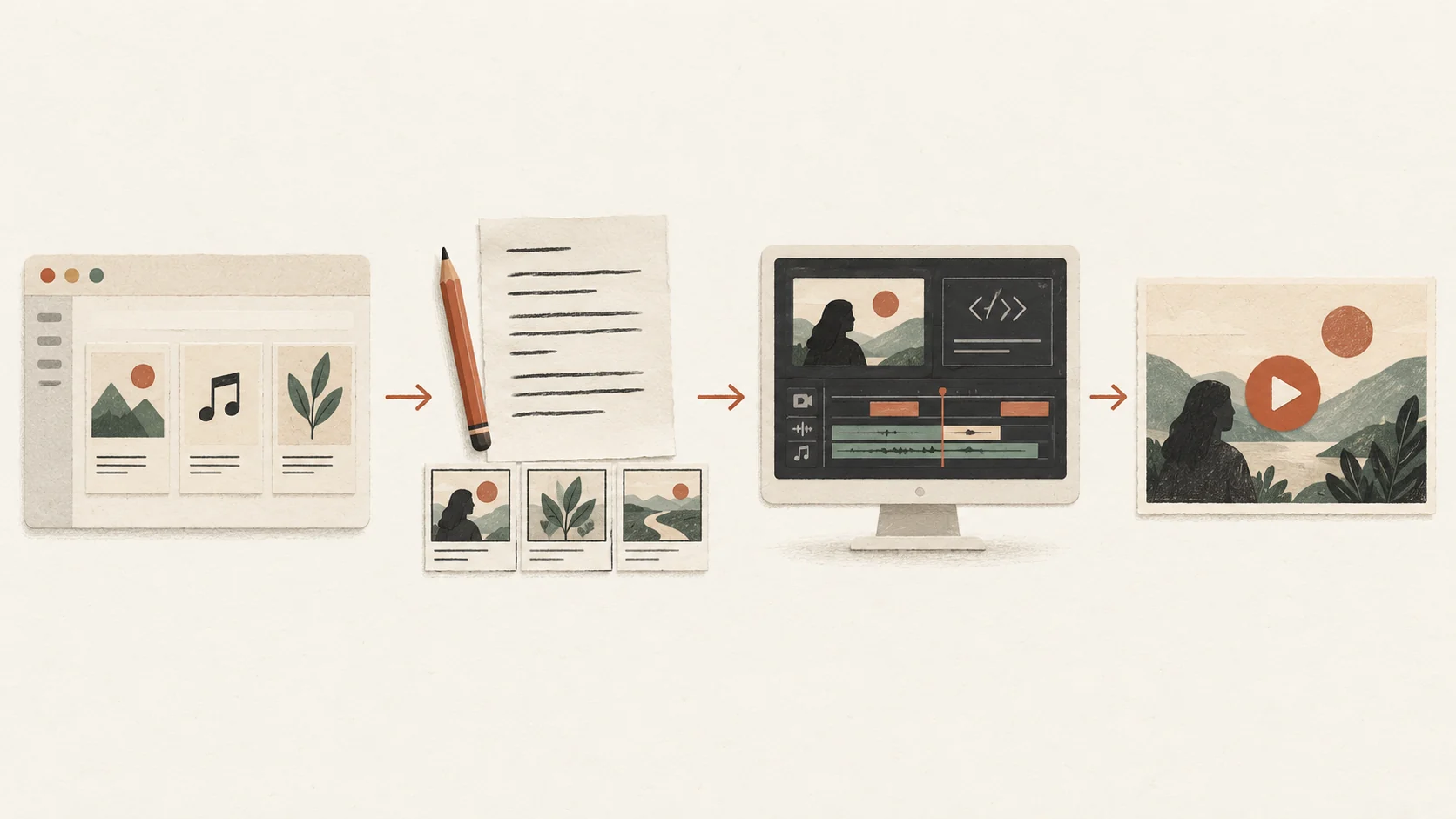
Read left to right: product materials, script and storyboard, production tools, finished video. Claude can assist across stages; export requires the production workflow.
Choose your production path
There are several ways to approach a Claude Opus 5.5 video. Choose based on the output you need and the work you want to manage.
Use an environment with execution tools
An execution-enabled workflow can create files using available software. Before investing in a long prompt, check the environment's supported tools, downloadable formats, and resource limits. File creation support does not guarantee that every animation library, audio service, or rendering command will be available.
Start with a small scene and request an actual export. Open that file outside the conversation. A working preview establishes that the environment can complete your chosen path before you expand the project.
Use Claude Code with Remotion
For editable product animations, a Claude Opus 5.5 video can use a local code project. Remotion's coding agent guide documents a setup with Node.js, a coding agent, dependencies, and a browser preview. You still manage the project and inspect its output.
Use the documented setup commands, then ask for one composition with explicit dimensions, duration, and scene timings. Preview it before rendering. Remotion's rendering documentation explains export through Studio or the command line. Treat this as a production process with iterations, rather than assuming the first response is delivery ready.
Work with a production service
If you want to provide materials and review a finished video, consider a service that handles animation, editing, rendering, and quality checks. Ask what is included and when production begins. A form submission does not confirm an order or delivery.
Prefer to focus on your product? Our current video service concept is priced at $49.99 per video. Explore the scope and prepare a request. The request form is a static demo that creates a local summary; it does not place an order, take payment, or start production.
Match the workflow to the visual
The right Claude Opus 5.5 video approach depends on what viewers need to see. For a software walkthrough, prioritize recognizable screens, readable labels, and a clear sequence of actions. For an atmospheric introduction, generated footage may help establish a mood.
For a Claude Opus 5.5 video, code animation offers control over text placement, layout, and timing. Footage generation serves a different task. Google's Veo documentation, for example, describes video generation from text and images. It is a separate model and workflow, not a native Claude output format.
A project can combine both approaches. Keep essential product screens grounded in supplied assets, then use other visuals where they support the story. Do not let decorative footage imply a feature your product does not have.
Prepare a brief before prompting
A Claude Opus 5.5 video brief gives the producer enough constraints to make decisions. Assemble the following before asking for a complete sequence:
- A public product URL and approved description of its main benefit.
- Three clear screenshots: the starting screen, the key action, and the result.
- The audience, viewing context, and one intended next action.
- Duration, aspect ratio, language, and any required narration or captions.
- Brand assets and instructions for sensitive information that must stay hidden.
Avoid relying on a URL to supply everything. Login screens, private dashboards, and changing website content can leave gaps. Provide the exact screens you want shown and identify the claims that are approved for publication.
You can browse the existing video style references to describe pacing or mood. These third-party references illustrate directions, not completed client work.
Example: a thirty second product story
Consider an illustrative Claude Opus 5.5 video brief for a fictional task management app. The audience is a small team lead. The message is that the app makes responsibility visible, and the desired action is to visit the product page. This is a planning example, not a tested implementation or customer case.

Illustrative storyboard: establish the problem, demonstrate one operation, then show the outcome. The interface is fictional.
Scene one: establish the problem
Use eight seconds to show scattered tasks and unclear ownership. Viewers should understand without pausing to read a paragraph.
Scene two: show one product action
Use the next fifteen seconds to demonstrate assigning a task and moving it through the board. Focus on one action instead of displaying every feature. Highlight the relevant control and leave enough time to recognize the changed state.
Scene three: show the result
Use the final seven seconds to show an organized board and the product name. End with one next action. Avoid introducing a new feature during the closing frame.
An example prompt for this Claude Opus 5.5 video plan could be:
Create a thirty second storyboard for team leads using the supplied screenshots. Use three scenes: unclear ownership, assigning one task, and the organized result. Specify on-screen text, timing, asset placement, and transitions. Keep all product claims limited to the approved description. List missing materials before proposing production steps.
Review the export before sharing
Before publishing a Claude Opus 5.5 video, inspect the exported file rather than only its preview. Play it on a phone, check small text, listen to the audio, and confirm that the final frame stays visible long enough to read.
Compare each product claim with the supplied material. Verify that logos, screenshots, music, and generated assets are suitable for your intended use. Keep a record of the brief and the production tools so future revisions can reproduce the sequence.
Frequently asked questions
Can Claude generate an MP4 directly?
The model's documented output is text. A Claude Opus 5.5 video may become an MP4 through execution or rendering tools. Ask which tool performs export and verify the resulting file.
Do I need to write code?
You can plan a Claude Opus 5.5 video without coding. A local Remotion workflow still involves installation, previewing, and troubleshooting. A production service can handle those steps under its agreed scope.
Can I upload an existing video?
Claude's standard upload guide lists documents and images, rather than MP4. Tool-based file processing is a different route. Confirm support in your specific environment before promising video analysis or editing.
Is the entire workflow free?
Budget separately for model access, rendering, footage, audio, and production work. Available tools and usage limits affect cost. Check provider terms before choosing a workflow.
Turn your brief into a production request
Ready to plan a Claude Opus 5.5 video for your product? Gather your URL, screenshots, audience, and preferred style. Our independent service concept uses Claude for planning and people for production. Review the service process before preparing your request.
The current offer is $49.99 per video. This site's request form is a static demo: it generates a local summary, with no payment, automatic email, or production started. Confirm scope and delivery before a real order begins.